
Best IPTV Player for Windows: How to Choose and Test M3U Links
Choose the best IPTV player for Windows by testing your M3U or M3U8 link first. Compare VLC, Kodi, IPTVnator, browser testing, EPG support, and common playlist failures.
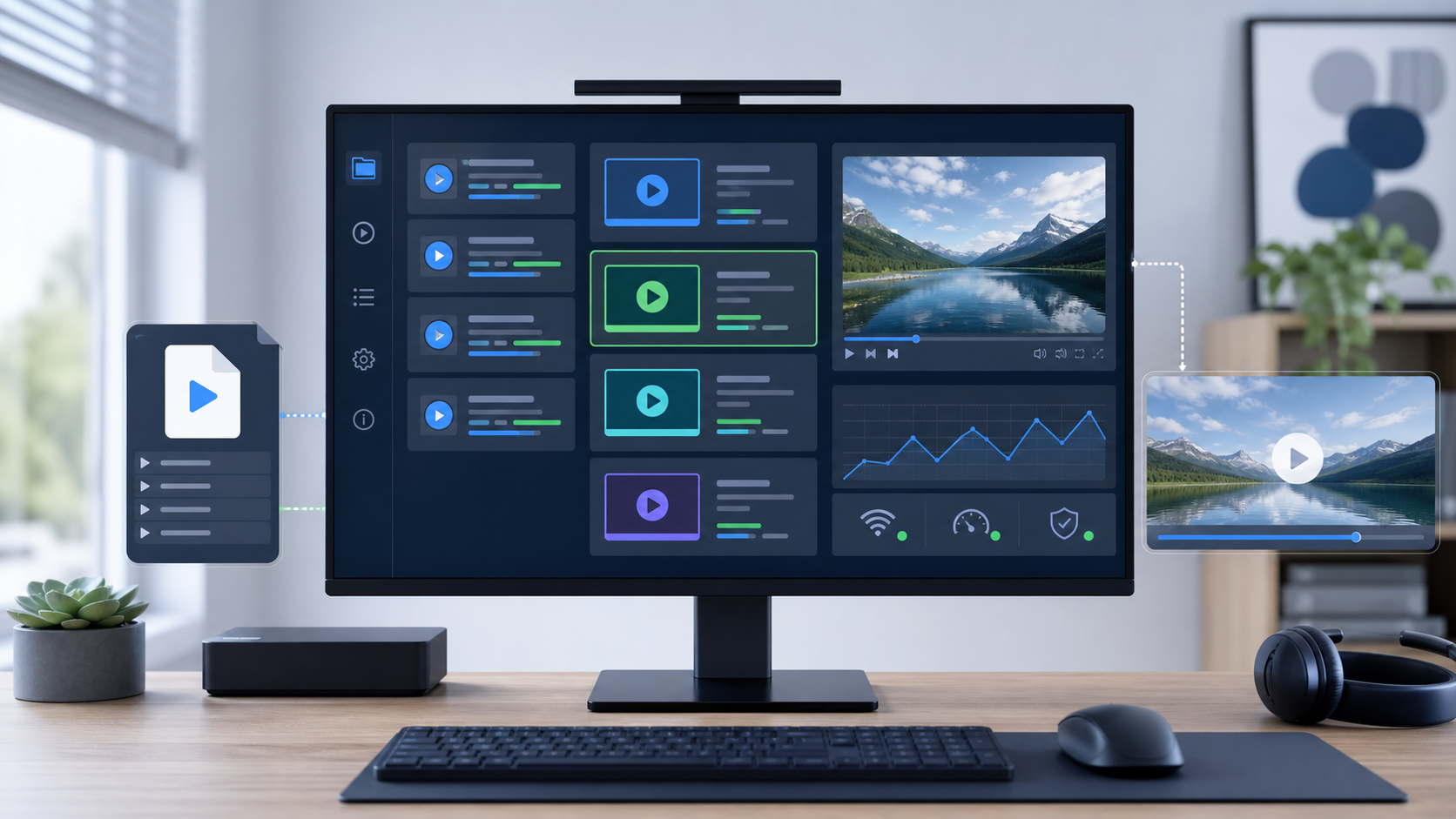
I used to think the best IPTV player for Windows was simply the app with the longest feature list. Then I watched the same playlist fail in one player, load with no guide in another, and play one channel perfectly in VLC.
That is when the real lesson became obvious: the best IPTV player is the one that matches your link type, your playlist structure, and your testing workflow.
This guide shows you how to choose a Windows IPTV player without guessing. You will learn what to test first, when to use VLC, Kodi, IPTVnator, MyIPTV Player, or a browser tool, and why an M3U playlist can fail even when the player itself is fine.
TL;DR: If you already have an M3U or M3U8 link, do not import it blindly into every Windows player you can find. Test one stream first, confirm whether it is M3U, M3U8/HLS, direct MP4, or a full playlist, then choose the player that fits that job.
IPTV Players Do Not Provide Channels
Start with the clean boundary.
An IPTV player is software that plays media streams or organizes playlists. It is not a channel provider, subscription service, or source of free TV.
This matters because many searches for “best IPTV player for Windows” get mixed with “free IPTV codes,” “best IPTV subscription,” and “20,000 channels” pages. That is a different intent. This article is about opening and testing links you are allowed to use: public streams, free-to-air sources, your own media, or streams from an authorized provider.
If you do not already have a legal M3U, M3U8, or account source, a player will not solve that problem.
The Fast Answer: Which Windows IPTV Player Should You Use?
Use this table before you install anything.
| Your situation | Best first choice | Why |
|---|---|---|
| You have one direct M3U8/HLS stream URL | Browser HLS test or VLC | Fastest way to confirm whether the stream is alive |
| You have a full M3U playlist with many channels | IPTV playlist tool, then IPTV player | A full playlist is a directory, not one playable stream |
| You want a simple universal desktop player | VLC | Easy network stream testing and broad format support |
| You want a TV-style interface with EPG | Kodi with PVR IPTV Simple Client | Strong for media-center workflows and XMLTV guide setup |
| You want a dedicated Windows IPTV app | IPTVnator, MyIPTV Player, IPTV Player Zero, or IPEXO | Better playlist, EPG, and IPTV-specific UI features |
| You are not sure whether the URL is M3U8, MP4, or something else | Use a detector or browser network inspection | You need to classify the media before choosing a player |
The practical rule: test first, import second. A good player cannot fix a dead playlist, an expired URL, missing EPG data, DRM protection, or a provider-side block.
Step 1: Identify What Kind of Link You Have
Before choosing a Windows IPTV player, identify the input.
M3U playlist
An M3U playlist is a text file that lists channels or media entries. It often starts with:
#EXTM3U
#EXTINF:-1 tvg-id="example" tvg-name="Example Channel" group-title="News",Example Channel
https://example.com/live/channel/index.m3u8
The important part is this: the M3U file is usually not the video itself. It is a list. Each channel entry points to another URL.
For IPTV, M3U entries may include metadata such as tvg-id, tvg-name, tvg-logo, group-title, and sometimes channel numbers or time-shift data. These fields help players organize the playlist and connect channels to EPG data.
M3U8 or HLS stream
An M3U8 file is a UTF-8 playlist commonly used by HLS. In a direct streaming workflow, it may point to video segments such as .ts or fragmented MP4 pieces.
That means an M3U8 URL is often the actual stream you can test in a browser HLS player or VLC.
EPG or XMLTV file
An EPG is the program guide. It is often provided separately as XMLTV data. Do not assume an M3U playlist automatically includes a working guide.
Many Windows IPTV complaints are not playback problems. They are guide-mapping problems: channel names do not match, tvg-id values are wrong, or the player does not have the XMLTV source configured.
Direct MP4
A direct .mp4 URL is a single video file. It is not an IPTV playlist and does not need IPTV playlist handling.
Portal, Xtream Codes, or provider login
Some apps support provider account workflows such as Xtream Codes. A browser HLS player will not replace that full account-based flow. If your provider gave you portal credentials instead of an M3U URL, choose a player that supports that login type.
Step 2: Test One Stream Before Importing the Whole Playlist
This is the step most people skip.
If you have a 5,000-channel playlist, do not start by importing all of it into a Windows app. Pick one channel entry and test the actual stream URL first.
Use this workflow:
- Open the M3U file in a text editor or playlist manager.
- Find one normal channel entry.
- Copy the URL below its
#EXTINFline. - Check whether the URL ends in
.m3u8,.mp4,.mpd, or something else. - Test that one URL in a browser HLS player or VLC.
- Only import the full playlist after the single-stream test works.
For a browser test, use the site tool that matches the format:
- Use IPTV Player when you want to test a single authorized IPTV stream in the browser.
- Use M3U8 Player when the direct stream is HLS/M3U8.
- Use IPTV Player M3U when your starting point is a playlist workflow, not one direct stream.
- Use IPTV Playlist Manager when you need to clean, group, deduplicate, or export an M3U list before using a Windows player.
This simple test prevents the most common mistake: blaming the Windows app when the real issue is a dead stream, wrong link type, blocked request, or messy playlist.
Step 3: Choose the Player Based on the Job
There is no single best IPTV player for every Windows user. There are several good choices for different jobs.
VLC: Best for quick network stream testing
VLC is the first tool I use when I want a fast desktop sanity check.
Open VLC, go to Media > Open Network Stream, paste the stream URL, and press play. If VLC plays the stream, you know the URL is reachable from your machine and the format is not totally broken.
VLC is especially useful when:
- You want to test one URL quickly.
- A browser player fails because of CORS.
- You want to see whether a stream is alive before importing a full playlist.
- You do not need a polished IPTV guide interface.
VLC is less ideal when:
- You want a TV-style channel grid.
- You need rich EPG mapping.
- You want a long-term playlist management experience.
Use VLC as a diagnostic tool first, not necessarily as your final IPTV setup.
Kodi: Best for a media-center IPTV setup
Kodi works well when you want a living-room style interface and are willing to configure it.
With Kodi’s PVR IPTV Simple Client, the usual setup is:
- Add the M3U playlist as the live TV stream source.
- Add an XMLTV source for EPG.
- Let Kodi map channels and guide data.
- Use Kodi as the full media-center interface.
Kodi is powerful, but it is not the fastest first test. If you only want to know whether one link works, test the direct stream before building the full Kodi setup.
Use Kodi when the guide, remote-friendly browsing, and media-center experience matter more than speed.
IPTVnator: Best for an open-source dedicated IPTV workflow
IPTVnator is a dedicated IPTV player rather than a general media player. It is a good fit if you want playlist import, M3U/M3U8 handling, EPG support, and a more IPTV-specific interface.
It is also appealing because it is open source and cross-platform, which makes it easier to trust than random download pages or unknown IPTV apps.
Use IPTVnator when:
- You want a focused IPTV app.
- You prefer open-source software.
- You work with M3U playlists and XMLTV guide data.
- You do not need provider-specific account features from a paid IPTV app.
MyIPTV Player: Best for a simple Microsoft Store route
MyIPTV Player is often found through the Microsoft Store and is attractive because it feels like a native Windows app.
It can make sense for users who want a simple install path and a familiar Windows experience. The tradeoff is that public technical details can be thinner than with open-source projects, so you should still test your links separately before assuming the app is the problem.
Use it when:
- You want an easy Windows Store install.
- Your playlist source is already clean.
- You want basic IPTV playback without building a Kodi setup.
IPTV Player Zero or IPEXO: Best for feature-heavy IPTV desktop use
Dedicated IPTV apps such as IPTV Player Zero or IPEXO are more focused on the full IPTV experience: playlists, guides, VOD sections, account-style workflows, and diagnostics.
That can be useful if you want something closer to a set-top-box interface on Windows.
The caution is simple: do not judge these apps by marketing pages alone. Test your actual playlist. Check whether the player supports your source type, whether EPG mapping works, and whether credentials or playlists are stored locally or remotely.
Use a feature-heavy app when:
- You care about guide browsing and playlist UX.
- You have a provider source that matches the app’s supported formats.
- You are comfortable trusting that app with your playlist or account workflow.
Step 4: Understand Why the Same Link Works in One Player but Fails in Another
When an IPTV link behaves differently across players, the cause is usually one of these five issues.
1. Browser CORS rules
A stream may work in VLC but fail in a browser because browsers enforce cross-origin request rules. That does not automatically mean the stream is dead.
If your browser test fails with a CORS message but VLC works, the server may simply not allow third-party browser fetches.
2. Expired or signed URLs
Some IPTV and video URLs include time-limited tokens. They may work for a few minutes and then fail with 403, 404, or a generic network error.
If the URL contains parameters like expires, token, sig, or sign, test quickly and expect it may not be reusable later.
3. EPG mismatch
A playlist can play while the guide stays empty. That usually means the EPG source is missing or the channel identifiers do not match.
Check:
- Does the player have a separate XMLTV URL?
- Do
tvg-idvalues in the M3U match the EPG? - Are channel names duplicated or inconsistent?
4. The playlist is too messy
Large public playlists often contain duplicates, dead channels, inconsistent groups, broken logos, and mixed formats.
Before blaming the Windows app, clean the playlist. Remove dead entries, group channels clearly, and export a smaller list. This is where IPTV Playlist Manager fits naturally.
5. The source is not really HLS
If the detected URL is .mpd, it is DASH, not HLS. If it is .mp4, it is a direct file. If it is blob:, it is a browser-generated reference, not the original media URL.
Classify the URL first. Then choose the tool.
Step 5: Use a Safe Test Playlist
If you want to test your Windows setup without using a private provider URL, create a small local M3U file with public test streams.
#EXTM3U
#EXTINF:-1,Big Buck Bunny Test
https://test-streams.mux.dev/x36xhzz/x36xhzz.m3u8
#EXTINF:-1,Apple LL-HLS Test
https://ll-hls-test.apple.com/master.m3u8
Save it as test-playlist.m3u, then import it into your player.
If the public test playlist works but your real playlist fails, your Windows player is probably fine. The issue is likely your source URL, provider restrictions, playlist formatting, EPG mapping, or network path.
Step 6: Keep the Legal Boundary Clear
IPTV is a delivery method. It is not automatically legal or illegal.
The legal question depends on whether the stream is public, free-to-air, owned by you, or authorized by the content owner or provider.
Avoid:
- Shared paid-account credentials.
- “Free IPTV codes” from random sites.
- Playlists that claim premium channels without authorization.
- Apps or guides that ask you to copy cookies, tokens, or private headers.
Use:
- Public test streams.
- Official broadcaster streams where allowed.
- Your own media.
- Provider playlists you are authorized to use.
This also improves SEO quality. A clean player-and-testing article should not drift into “where to find free channels” intent.
Recommended Workflow
Here is the simple workflow I would use on a Windows PC:
- Classify the link. Is it a full M3U playlist, a direct M3U8 stream, direct MP4, MPD/DASH, or a provider login?
- Test one stream. Copy one actual channel URL and test it before importing the whole playlist.
- Compare browser and VLC. If VLC works but the browser fails, suspect CORS or browser-only restrictions.
- Clean the playlist. Remove duplicates, dead entries, and messy groups before importing.
- Pick the final player. Use VLC for simple testing, Kodi for media-center EPG, or a dedicated IPTV app for long-term use.
- Check EPG separately. If playback works but the guide does not, fix XMLTV and
tvg-idmapping. - Stop when the issue is authorization. DRM, expired private URLs, and session-only streams are not player-selection problems.
FAQ
What is the best IPTV player for Windows?
The best IPTV player for Windows depends on your workflow. Use VLC for quick stream testing, Kodi for a media-center setup with EPG, IPTVnator for an open-source IPTV app, and a dedicated IPTV player when you need playlist, guide, and provider-account features.
Can VLC play IPTV M3U playlists?
Yes, VLC can open network streams and M3U playlists. It is excellent for testing whether a stream URL is reachable, but it is not always the best long-term interface for large IPTV playlists and EPG browsing.
Why does my M3U playlist not open in a browser player?
A full M3U playlist is usually a list of channels, not one playable stream. A browser HLS player often expects one direct M3U8/HLS URL. Open the playlist, copy one channel stream URL, and test that URL separately.
Why does the guide not appear in my IPTV player?
The EPG is often a separate XMLTV source. Your player needs both the playlist and the guide source, and the playlist’s tvg-id or channel names must match the guide data.
Is M3U the same as M3U8?
No. M3U is a playlist format. M3U8 is a UTF-8 version commonly used for HLS playlists. In IPTV, an M3U file may contain many channels, while a direct M3U8 URL is often points to one HLS stream.
Should I use a free IPTV player for Windows?
You can use free players, but separate the player from the source. A free player is fine. Random “free channel” playlists, shared codes, and unauthorized subscription sources are the risky part.
Why does a stream work in VLC but not in my browser?
Browsers enforce CORS and other web security rules. VLC is a native desktop app and may not be blocked by the same browser restrictions.
Why does a link work once and fail later?
It may be a signed or tokenized URL that expires. Refresh the source page or provider app to get a fresh authorized URL, but do not try to modify or forge tokens.
The Bottom Line
The best IPTV player for Windows is not the app with the biggest feature list. It is the player that fits your source type after you test the link. Start with one direct stream, classify the URL, clean the playlist, then choose VLC, Kodi, IPTVnator, MyIPTV Player, or another dedicated Windows IPTV app based on the job.