
FFmpeg Command Generator

Generate FFmpeg commands with a visual interface, without memorizing complex parameters.
下载M3U8并转换为MP4
下载在线M3U8流并保存为MP4文件
MP4转换为M3U8
将MP4文件切片为HLS流
M3U8加密
创建加密的HLS流
视频格式转换
在各种视频格式之间转换
压缩视频
减小视频文件大小
调整分辨率
改变视频分辨率
提取音频
从视频中提取音频
添加音频到视频
将音频文件添加到视频
添加字幕
将SRT字幕添加到视频
Build FFmpeg Commands Without Memorizing Flags
Use a visual workflow to assemble common FFmpeg operations, understand which settings matter, copy a command, and move faster when working with video conversion, audio extraction, compression, trimming, subtitles, and HLS processing.
Visual Command Builder
Select the operation you need and let the page assemble a usable command structure from clear form controls.
Common Video Workflows
Generate commands for format conversion, compression, trimming, scaling, audio extraction, subtitle handling, and stream preparation.
Less Parameter Guessing
Avoid searching for every flag from scratch. The interface keeps important inputs visible and reduces syntax mistakes.
Copy-Ready Output
Review the generated command and copy it into your terminal, script, documentation, or team runbook.
Useful for Learning
The visual controls help connect FFmpeg concepts to the command that is produced, making repeated work easier over time.
Works With M3U8 Workflows
Use the generator as a companion for HLS testing, M3U8 downloading, conversion, compression, and media debugging tasks.
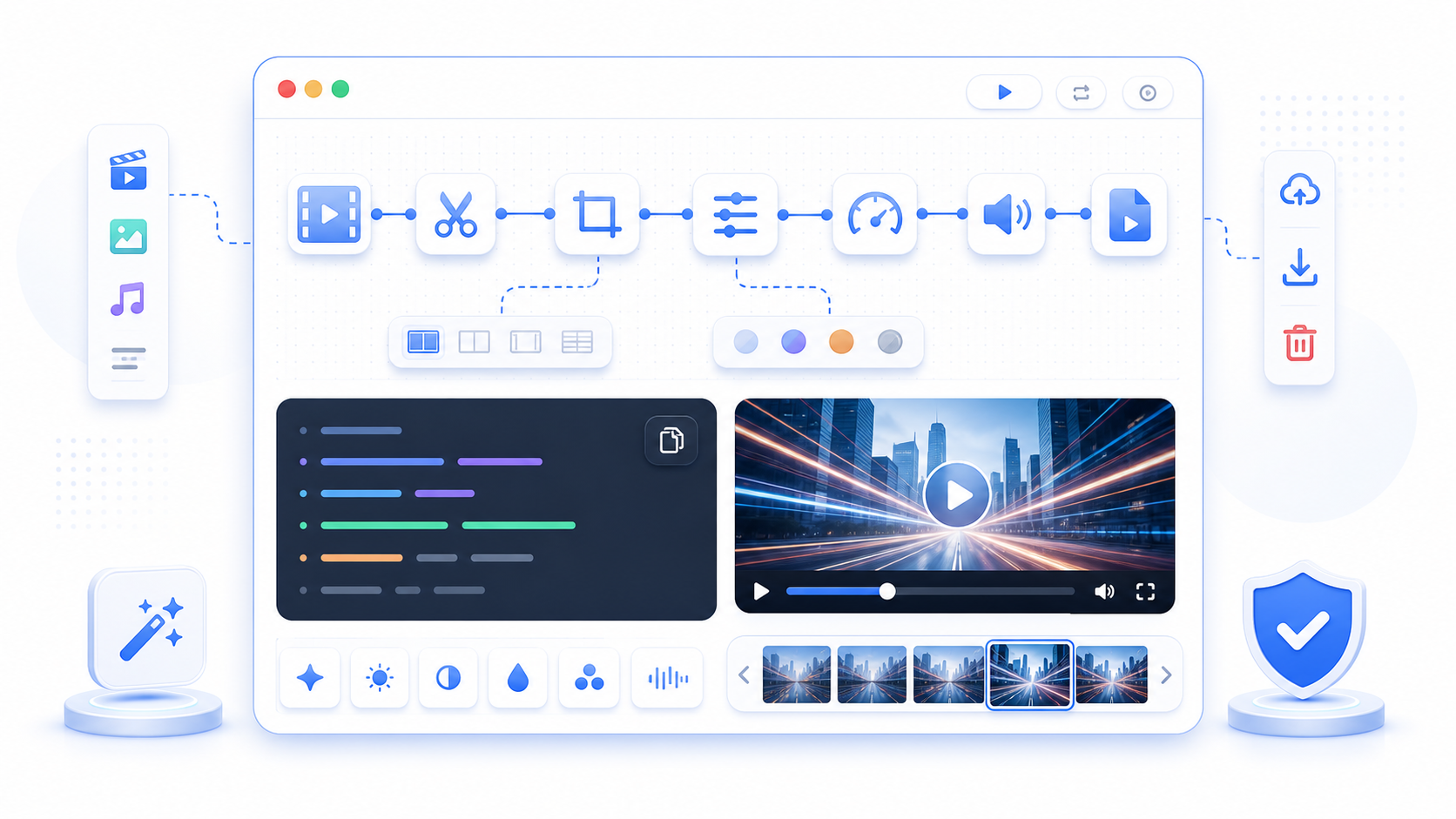
What is an FFmpeg Command Generator?
An FFmpeg command generator turns visual choices into command-line instructions. Instead of memorizing syntax for codecs, scaling, trimming, audio extraction, subtitles, or HLS workflows, you configure the job in a browser and copy the generated command.
Visual Inputs
Choose source, output, codec, quality, size, and workflow options from controls rather than building every flag manually.
Command Preview
See the command structure before using it so you can inspect the output and understand what will run.
Reusable Workflow Aid
Use generated commands as a starting point for scripts, batch jobs, tutorials, and repeat media operations.
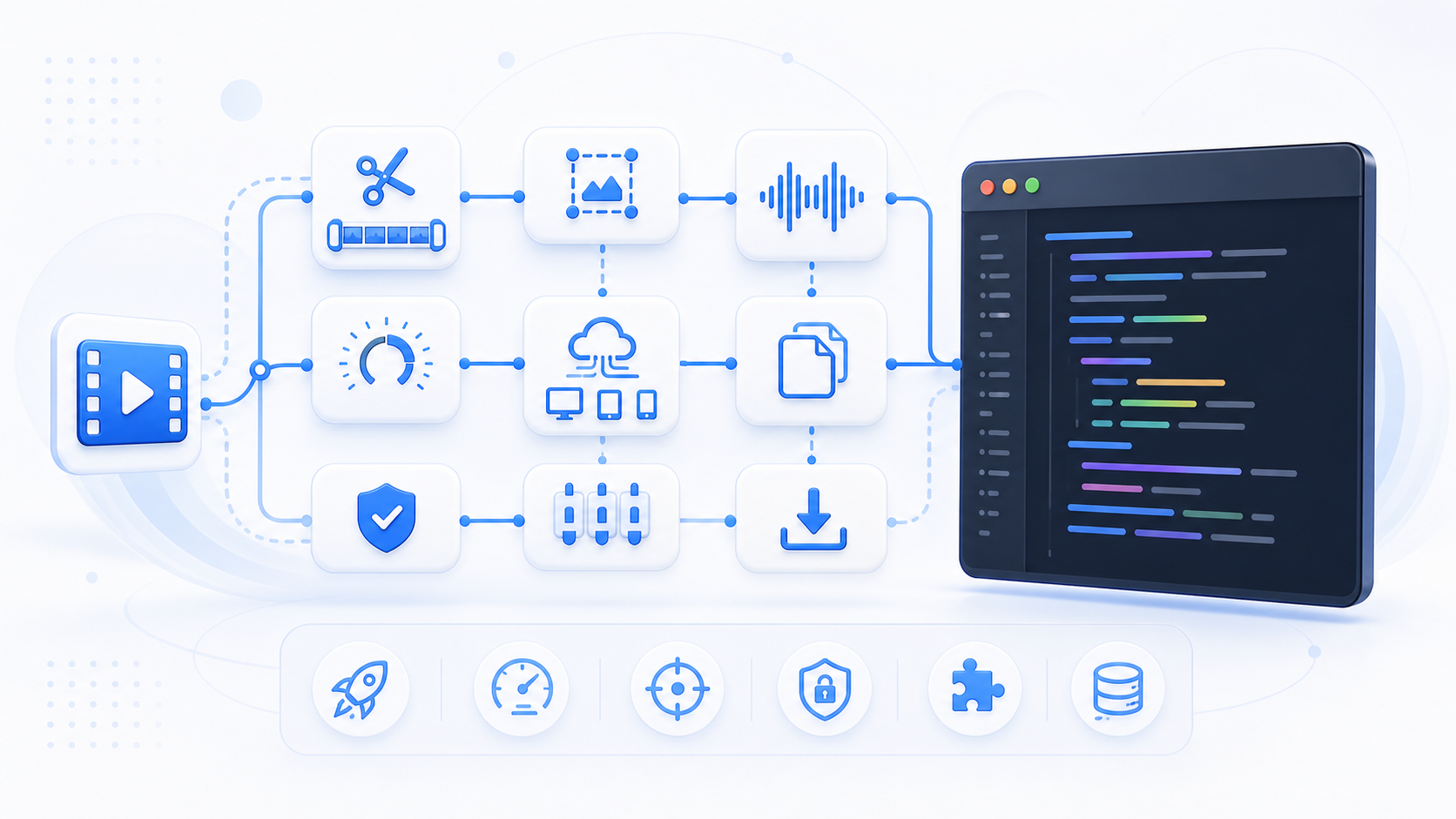
Why Use a Visual FFmpeg Command Builder
FFmpeg is powerful, but command syntax is easy to get wrong. A visual generator helps you produce a cleaner first draft, reduce parameter mistakes, and document repeatable media workflows for yourself or your team.
Move Faster
Start from a generated command instead of rebuilding the same conversion, compression, or trimming syntax from memory.
Reduce Syntax Errors
Structured controls lower the chance of missing inputs, mixing flag order, or forgetting common output settings.
Teach the Workflow
Generated commands make it easier to explain how a media job works in documentation or internal support notes.
Bridge Browser Tools and CLI
Use the site for quick browser workflows, then generate FFmpeg commands when you need local automation or repeatable processing.
How to Generate an FFmpeg Command
Start with the media task, choose the relevant settings, review the generated command, and test it with a small file before using it on important production media.
Choose the Workflow
Pick the operation you need, such as conversion, compression, trimming, audio extraction, subtitles, or HLS processing.
Enter Source and Output Details
Set the input file, output format, destination filename, and any important media options.
Tune Quality Settings
Adjust codec, resolution, bitrate, CRF, frame rate, or audio settings when the workflow requires them.
Copy the Command
Review the generated command and copy it into your terminal, script, or documentation.
Test on a Small Sample
Run the command on a short clip first so you can verify quality, timing, audio, and output compatibility.
Built for Repeatable Media Work
A browser companion for people who use FFmpeg occasionally or need cleaner first drafts for common commands.
Main Output
Command
Copy-ready FFmpeg syntax
Common Tasks
6+
Conversion, trim, audio, HLS
Install Required
0
Generator runs in browser
Who Uses the FFmpeg Command Generator
Developers, creators, educators, support teams, and video operators use the generator when they need a reliable command draft without searching through FFmpeg flags every time.
Maya Collins
Video Operations Lead
I use it to draft repeat commands before turning them into runbook steps. It keeps our support notes clearer.
Daniel Park
Frontend Engineer
When I need a quick conversion command for a test asset, the visual controls get me to a working first version faster.
Rachel Morgan
Course Producer
It helps me understand what the command is doing before I ask someone technical to automate the workflow.
Owen Fisher
Streaming QA Analyst
For HLS and conversion checks, a generated command is a clean starting point before I tune exact parameters.
Nora Bennett
Content Manager
The page makes FFmpeg less intimidating when the task is simple but the command syntax is not obvious.
Luis Herrera
Support Specialist
I use the generated output in replies when customers need a clear command pattern to reproduce a media fix.
Priya Shah
E-Learning Manager
It is useful for internal video cleanup tasks that happen often but not often enough to memorize FFmpeg flags.
Marcus Reed
Media Technician
I like having visual controls for the common jobs and a command I can still edit manually afterward.
Elena Rossi
Product Marketer
It helps our team prepare demo clips and documentation assets without waiting for a full editing workflow.
FFmpeg Command Generator FAQ
Answers to common questions about generated commands, FFmpeg installation, formats, HLS workflows, quality settings, and safe testing.
Does this page run FFmpeg for me?
No. The generator helps create commands. You still run the command in an environment where FFmpeg is installed.
Do I need to know FFmpeg syntax?
You do not need to memorize every flag, but you should still review the generated command before running it on important files.
Can it generate commands for HLS or M3U8?
Yes, it is designed to support common HLS and M3U8-related workflows alongside conversion, compression, audio, and trimming tasks.
Are generated commands production-ready?
Treat them as strong first drafts. Test on a short sample, then tune codec, bitrate, resolution, or compatibility settings for your exact destination.
Why should I test on a sample file?
Testing avoids long failed runs and helps confirm audio sync, subtitles, duration, quality, and output compatibility before processing large files.
Can I edit the generated command?
Yes. The generated output is meant to be copied and adjusted when you need advanced FFmpeg behavior.
What if my terminal says FFmpeg is missing?
Install FFmpeg locally or use an environment that already includes it. The browser generator does not install FFmpeg on your machine.
Can this replace reading FFmpeg documentation?
No. It reduces friction for common tasks, but FFmpeg documentation is still the source of truth for advanced edge cases.
Ready to Build an FFmpeg Command?
Choose a workflow, tune the settings, copy the command, and test it on a small clip before using it in production.