
IPTV Player M3U Guide: How to Open, Test, and Fix M3U Playlist URLs
Learn how to open an M3U playlist, test IPTV playlist URLs, fix M3U/M3U8 errors, and safely verify streams before importing them into an IPTV player.
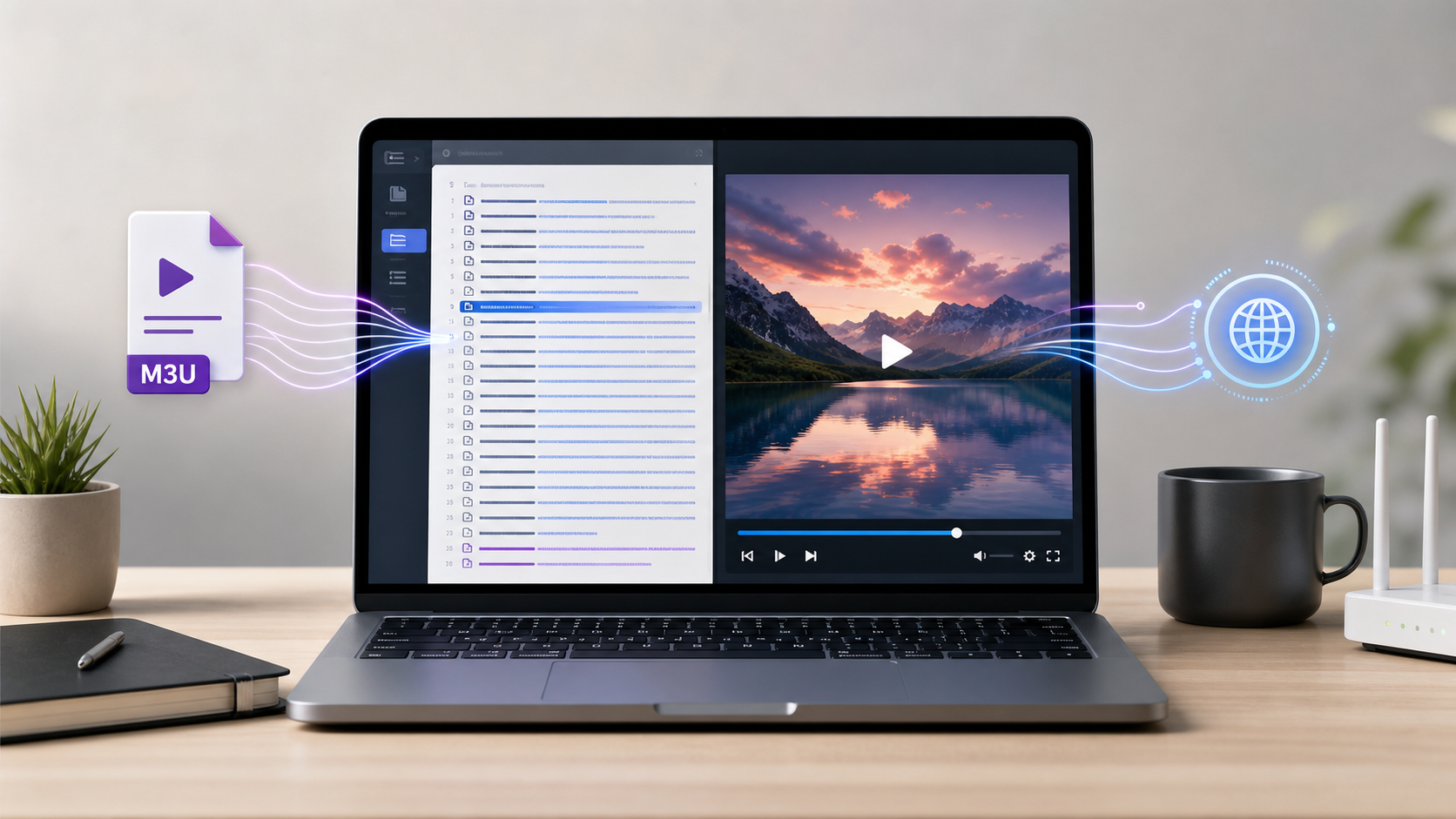
The first time you paste an IPTV playlist URL into a player and nothing happens, it feels like the player is broken. I have seen the same link fail in one app, open as plain text in a browser, and play one channel perfectly after I copied the actual stream URL.
The problem is usually not the word “IPTV.” It is that people mix up three different things: an M3U playlist, an M3U8/HLS stream, and the actual video request.
This guide shows you how to open an M3U playlist, test one stream safely, fix common playlist problems, and decide which tool to use before importing everything into an IPTV player.
TL;DR: An M3U playlist is usually a channel directory, not one playable video. Open the playlist, copy one stream URL, identify whether it is M3U8/HLS, MP4, or something else, test that stream, then clean the playlist before using it in your IPTV player.
What Is an M3U Playlist for IPTV?
An M3U playlist is a plain-text file that lists media entries. In IPTV, it usually acts as a channel list.
A simple IPTV M3U entry looks like this:
#EXTM3U
#EXTINF:-1 tvg-id="example" tvg-name="Example Channel" group-title="News",Example Channel
https://example.com/live/channel/index.m3u8
The #EXTINF line describes the channel. The URL below it is the stream the player tries to open.
IPTV playlists often include metadata such as:
tvg-idfor matching a channel to an EPG entry.tvg-namefor the channel display name.tvg-logofor a channel icon.group-titlefor playlist categories.
The important point is simple: the playlist is not the video. It is a list of entries that point to video streams.
M3U vs M3U8 vs HLS: Do Not Mix These Up
These terms are related, but they do not mean the same thing.
| Term | What it usually means | Common use |
|---|---|---|
| M3U | A playlist text file | A channel list with many entries |
| M3U8 | A UTF-8 playlist, often used by HLS | A stream manifest or playlist |
| HLS | HTTP Live Streaming | Adaptive streaming with playlists and segments |
| MP4 | A single media container file | Direct video download or playback |
| MPD | A DASH manifest | Not HLS, not M3U8 |
In everyday IPTV work, a full .m3u file may contain hundreds or thousands of channels. A direct .m3u8 URL often points to one HLS stream.
If you paste a full M3U playlist into a tool that expects one direct M3U8 stream, it may fail even though the playlist itself is valid.
Step 1: Check Whether the Playlist URL Opens
Start with the simplest test.
Paste the playlist URL into a browser. A valid playlist may download as a file or open as plain text. You should see lines such as #EXTM3U, #EXTINF, and stream URLs.
If you see an HTML login page, an error page, or a blank response, you do not have a clean playlist URL.
Check:
- Does the URL return playlist text?
- Does it start with
#EXTM3U? - Are there stream URLs below the channel metadata?
- Does the server return
403,404, or another error? - Does the URL depend on login, cookies, or an expired token?
Do not move to player testing until the playlist itself is reachable.
Step 2: Check the M3U File Structure
Once the playlist opens, inspect the structure.
A clean playlist should have:
- One
#EXTM3Uheader near the top. - One
#EXTINFline for each media entry. - One stream URL after each
#EXTINFline. - Consistent metadata fields when EPG is important.
Common structure problems include:
- Missing stream URLs.
- Duplicate channel entries.
- Broken line breaks.
- Extra HTML copied into the file.
- Invalid or inconsistent
tvg-idvalues. - Mixed source types in one list.
If the playlist is large, use IPTV Playlist Manager to clean duplicates, group channels, and export a smaller working list before testing in a Windows app, smart TV app, or media center.
Step 3: Test One Stream Before Importing the Whole Playlist
This is the most useful habit.
Do not import a 10,000-line playlist first. Pick one normal channel and test the actual stream URL below its #EXTINF line.
Use this workflow:
- Open the playlist in a text editor or playlist manager.
- Find one channel entry.
- Copy the stream URL below
#EXTINF. - Identify the format:
.m3u8,.mp4,.mpd, or something else. - Test that one URL in the matching tool.
- If it works, import or clean the full playlist.
For a direct M3U8/HLS-URL, use M3U8 Player or IPTV Player to run a browser playback test.
For a playlist workflow, use IPTV Player M3U as the better internal destination.
Step 4: Identify the Actual Stream Type
The stream URL tells you what kind of problem you are solving.
If the URL is .m3u8
It is probably HLS. A browser HLS player or VLC can test whether the stream is alive.
If the URL is .mp4
It is a direct video file, not an IPTV playlist problem.
If the URL is .mpd
It is usually DASH, not HLS. Do not force it into an M3U8 player.
If the URL is blob:
It is not the original media URL. It is a browser-created reference. You need browser network inspection or a detector to find the actual media request.
If the URL has long token parameters
It may be signed or temporary. It can expire quickly, even if it worked a few minutes ago.
Step 5: Understand Why an IPTV Playlist Fails
Most failures fall into a few buckets.
| Symptom | Likely cause | What to do |
|---|---|---|
| Playlist does not open | Dead URL, login page, expired token | Get a valid authorized playlist URL |
| Browser player fails but VLC works | CORS restriction | Use a native player or authorized source workflow |
| One channel works but others fail | Dead entries or mixed sources | Clean and test entries one by one |
| Playlist plays but EPG is empty | Missing XMLTV source or mismatched tvg-id |
Add EPG source and fix IDs |
| Link worked yesterday but not today | Expired signed URL or provider change | Refresh from the authorized source |
| Player shows unsupported format | MPD, DRM, codec issue, or wrong tool | Classify the source before retrying |
The key is to find the first failure. If the playlist URL fails, a better player will not help. If one stream fails, the full playlist may still be usable after cleanup.
Step 6: Compare Browser Playback With VLC or Another Player
Browser players and desktop players behave differently.
A browser player is fast and convenient, but it must follow web security rules such as CORS. VLC and other native players may handle some network streams that a browser tool cannot fetch.
Use both tests:
- Test the direct M3U8 URL in a browser player.
- Test the same URL in VLC with Media > Open Network Stream.
- Compare the result.
If VLC works and the browser fails, suspect a browser access rule. If both fail, the stream URL may be dead, expired, blocked, or not a valid HLS stream.
Step 7: Clean the Playlist Before Saving It
Once you know the source works, clean the playlist.
Good playlist hygiene means:
- Remove duplicate channels.
- Delete entries that return
404or410. - Group channels clearly.
- Keep channel names consistent.
- Fix
tvg-idvalues when EPG matters. - Keep a small test playlist separate from the full list.
A clean playlist is easier to import, easier to debug, and less likely to make every player look broken.
Safe and Legal IPTV Use
IPTV is a delivery method. It is not automatically legal or illegal.
Use M3U and M3U8 URLs only when they are public, free-to-air, owned by you, or provided by a service you are authorized to use.
Avoid:
- Shared paid-account credentials.
- Random “free IPTV codes.”
- Playlists that claim premium channels without authorization.
- Guides that ask you to copy cookies, private headers, or license keys.
This article is about testing and organizing legitimate streams, not finding unauthorized channel sources.
Recommended Workflow
Use this simple workflow whenever an IPTV playlist fails:
- Open the playlist URL. Confirm it returns M3U text, not an error page.
- Inspect the structure. Check
#EXTM3U,#EXTINF, and stream URLs. - Copy one stream URL. Test one channel before importing everything.
- Classify the stream. Identify M3U8/HLS, MP4, MPD, or
blob:. - Test in browser and VLC. Separate browser restrictions from dead links.
- Clean the playlist. Remove duplicates and broken entries.
- Import into the final player. Use the IPTV app only after the source is known to work.
FAQ
What is an IPTV M3U playlist?
An IPTV M3U playlist is a text file that lists channels or media entries. Each entry usually has metadata and a stream URL. The playlist organizes streams; it is not a video file by itself.
Why does my M3U playlist not play?
It may be a full playlist pasted into a single-stream player, a dead URL, an expired token, a CORS issue, broken formatting, or an EPG mismatch. Test one stream URL before importing the full playlist.
Is M3U the same as M3U8?
No. M3U is a playlist format. M3U8 is a UTF-8 playlist and is commonly used for HLS streaming. In IPTV, an M3U file may contain many channels, while an M3U8 URL may point to one stream.
How do I test an M3U playlist URL?
Open the playlist, copy one stream URL below an #EXTINF line, identify its format, and test that one stream in a browser player or VLC.
Why does EPG not load in my IPTV player?
The EPG is often a separate XMLTV source. Your playlist needs matching tvg-id or channel names so the player can connect channels to guide data.
Can I use an M3U playlist in VLC?
Yes. VLC can open network streams and many playlist files. It is especially useful for testing one stream URL before you import a full IPTV list into another app.
What if the playlist contains MPD links?
MPD usually means DASH, not HLS. Do not treat it as an M3U8 stream. Use a tool that supports DASH or classify the source before continuing.
The Bottom Line
An M3U playlist is a directory, not a guarantee that every channel will play. Open the playlist, test one stream, classify the format, clean the entries, and only then import the list into your IPTV player.