
MKV to MP4 Converter

Convert MKV videos to browser-friendly MP4 directly from your device. This free online MKV to MP4 converter helps prepare Matroska videos, downloaded recordings, multi-track exports, and archive files for sharing, editing, uploading, and playback without requiring desktop software or a server upload.
Multiple Formats
Supports MP4/WEBM/MKV/AVI and more
No Installation
Powered by FFmpeg.wasm, runs in browser
Full Quality Control
Customize CRF, resolution, codec parameters
Practical MKV to MP4 Conversion Tools
Use a focused browser workflow to convert MKV files into widely compatible MP4 output while controlling privacy, playback compatibility, and file readiness before sharing.
MKV Input Support
Select MKV videos from your device and prepare them for a cleaner MP4 playback workflow.
Universal Playback Output
MP4 is easier to open in browsers, phones, editing tools, learning platforms, and social publishing workflows.
Local Browser Processing
The conversion is designed to run in your browser, reducing the need to upload unpublished or private files.
Quality-Aware Conversion
Keep a practical balance between visual quality, compatibility, and file size for the destination workflow.
No Desktop Encoder Setup
Avoid installing command-line FFmpeg or a full editing suite when you only need a straightforward format conversion.
Works With Related Tools
After conversion, continue to compression, GIF creation, audio extraction, or playback testing if the file needs another step.
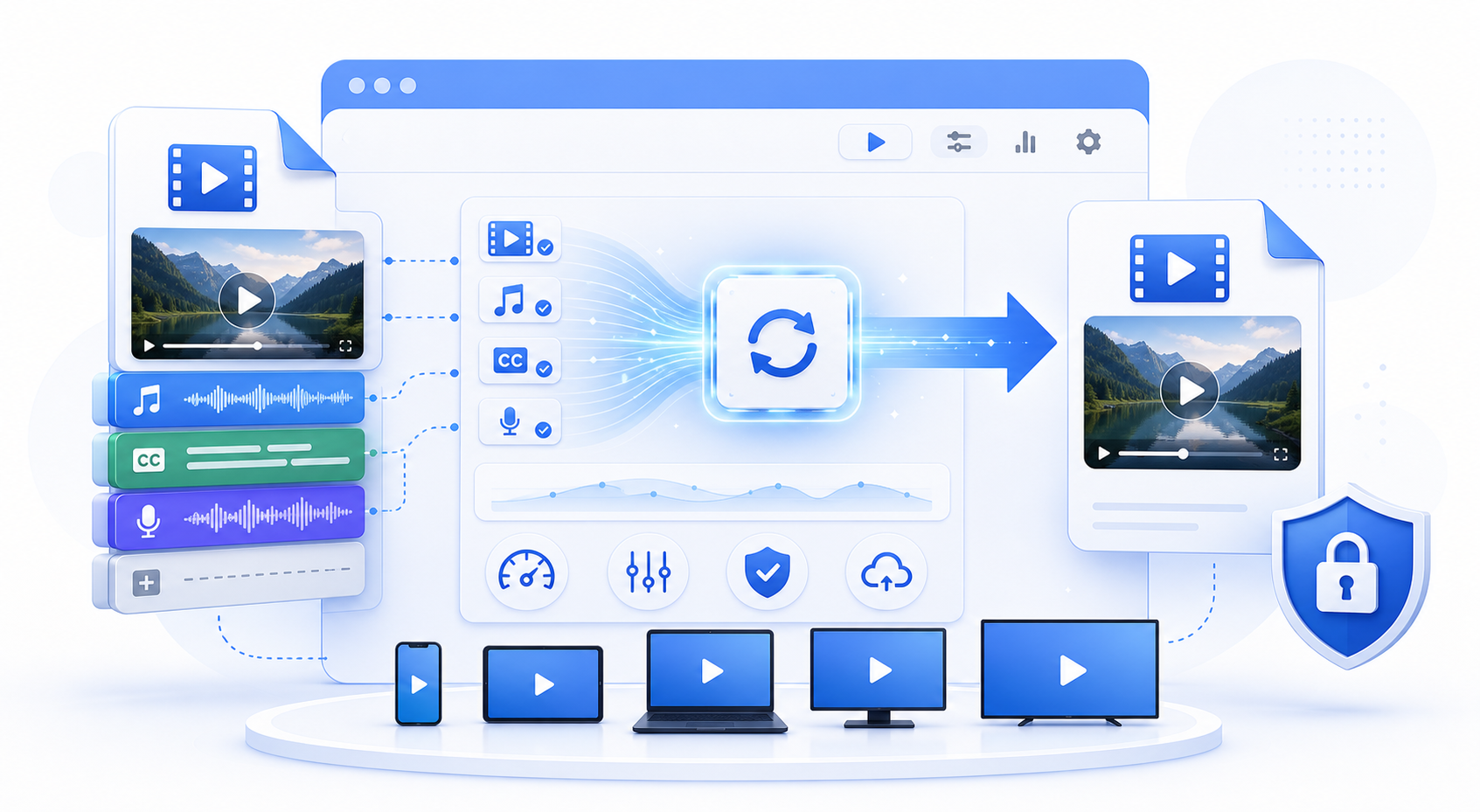
What is a MKV to MP4 Converter?
A MKV to MP4 converter changes the video container or encoding workflow so the file is easier to play, upload, and share. MKV is flexible, but many browsers, editors, phones, and upload platforms expect MP4. Conversion helps make the video easier to play and distribute.
Container Compatibility
MKV and MP4 can hold video and audio differently. Conversion helps match the format expected by browsers and platforms.
Playback Readiness
A converted MP4 file is usually easier to test, preview, embed, and send to users who do not know the source format.
Local File Workflow
Browser-side conversion is useful for drafts, internal clips, and files that do not need to pass through a remote upload service.
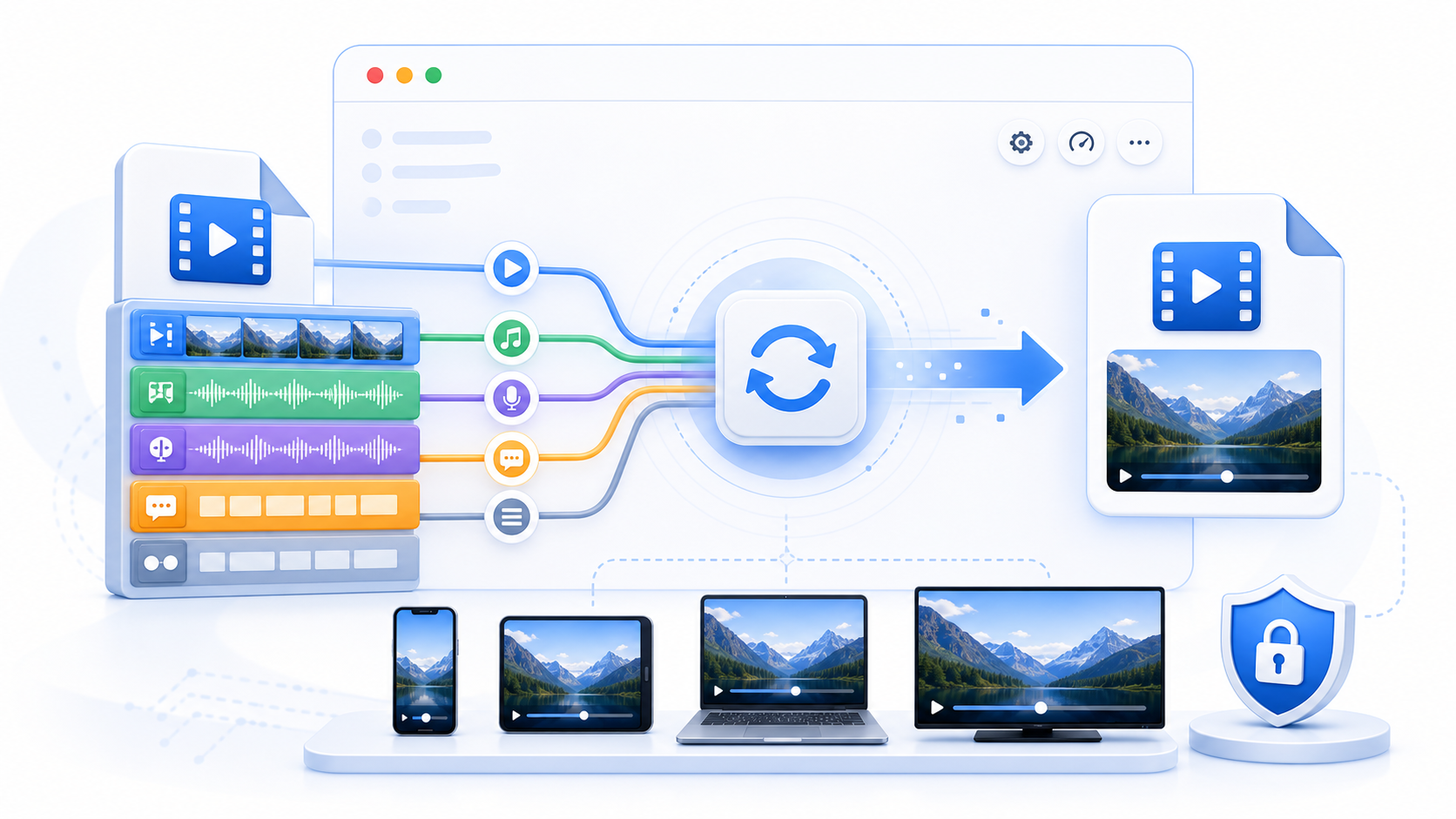
Why Convert MKV to MP4
The goal is not to add complexity. It is to make the video more predictable across browsers, devices, editors, and upload destinations while keeping the conversion path clear.
Improve Compatibility
MP4 is one of the safest choices when you need a video to play in more places with fewer support questions.
Reduce Workflow Friction
Convert before uploading or sharing so reviewers, clients, students, or teammates can open the file without special software.
Keep Control of the File
Local processing helps avoid casual uploads of private, unfinished, or client-owned media.
Prepare for Next-Step Editing
A standard MP4 can be easier to compress, trim, embed, or convert into GIF and audio derivatives.
How to Convert MKV to MP4
Use this process to convert a local MKV file into a more compatible MP4 file and verify the result before publishing or sending it onward.
Choose a MKV File
Select the source video from your device. Smaller clips convert faster and are easier to preview.
Review Conversion Settings
Use the default settings for broad compatibility, or adjust quality options when the workflow exposes them.
Start Browser Conversion
Let the tool process the file locally and prepare a compatible output.
Download the MP4
Save the converted file with a clear filename so it is easy to test and share.
Play and Inspect the Result
Open the output file to confirm video, audio, duration, and quality before using it in another workflow.
MKV Conversion at a Glance
A browser-based workflow for turning MKV files into practical MP4 output.
Input
MKV
Source video format
Output
MP4
Compatible video file
Processing
Local
Runs in the browser
Who Uses the MKV to MP4 Converter
This converter is useful for people who need files to open reliably before uploading, editing, reviewing, or sharing video content.
Maya Collins
Video Operations Lead
I use the MKV to MP4 converter pages when I need a quick browser check before sending media to an editor or client. The workflow is simple enough for repeated daily use.
Daniel Park
Frontend Engineer
The local browser processing model matters. I can validate the mkv to mp4 converter output without handing internal test files to another upload service.
Rachel Morgan
Course Producer
Our lesson clips need fast cleanup before publishing. This tool gives my team a practical path from source file to usable output.
Owen Fisher
Streaming QA Analyst
It helps separate file problems from browser problems. I can test the result immediately and decide whether the source needs a different workflow.
Nora Bennett
Content Manager
The page is easy for non-engineers, but the details are still useful when we need to explain settings, quality, and export choices.
Luis Herrera
Support Specialist
When users send media that will not open or share cleanly, I start here because the page makes the next action obvious.
Priya Shah
E-Learning Manager
I like that the copy explains what is happening. It reduces back-and-forth when teammates need to convert or optimize clips themselves.
Marcus Reed
Media Technician
The browser-first workflow saves setup time. I can run a quick conversion or test without installing a desktop app on every machine.
Elena Rossi
Product Marketer
For demos, help docs, and social assets, this gives us a fast way to prepare media while keeping the original file workflow clear.
MKV to MP4 FAQ
Answers to common questions about MKV compatibility, MP4 output, browser conversion, privacy, playback checks, large files, source codecs, and what to do when conversion fails.
Why convert MKV to MP4?
MKV is flexible, but many browsers, editors, phones, and upload platforms expect MP4. Conversion helps make the video easier to play and distribute.
Does conversion reduce quality?
Any re-encoding can affect quality. Use a practical quality setting and review the result before deleting the original file.
Is my video uploaded?
The page is designed for browser-local processing. Your selected file does not need to be uploaded to a server for normal conversion.
Will the MP4 play everywhere?
MP4 is widely supported, but playback still depends on codec, resolution, bitrate, and the target platform requirements.
Can I convert large videos?
Large files depend on browser memory and device performance. Close heavy tabs and expect longer processing for large or high-resolution videos.
Should I keep the original file?
Yes. Keep the original until you confirm the converted file has the expected video, audio, duration, and quality.
Can I compress the output afterward?
Yes. After conversion, use the video compressor if you need a smaller file for upload, email, or web delivery.
What if conversion fails?
Check that the file is not corrupted, try a smaller clip, make sure the browser has enough memory, and confirm that the source codec is supported.
Ready to Convert MKV to MP4?
Choose your MKV file, convert it locally, and download a compatible MP4 for playback, editing, or sharing.