
Drop MOV file here or click to select
Supports .mov video files
MP3 output keeps only the audio track from your MOV video
Max file size: 500MB
Output bitrate
Multiple Formats
Supports MP4/WEBM/MKV/AVI and more
No Installation
Powered by FFmpeg.wasm, runs in browser
Full Quality Control
Customize CRF, resolution, codec parameters
What Is a MOV File
MOV is Apple's QuickTime video container. It can hold video, audio, subtitles, and metadata in one file, which makes it useful for editing, recording, and exporting from phones, cameras, and desktop video apps. MP3 is different: it is an audio-only format built for portability and broad playback support. When you convert MOV to MP3, you are not turning one video format into another. You are extracting the audio track and saving only the sound you actually need.
- MOV Is a Video ContainerA MOV file often includes both picture and sound. That is perfect for video editing, but unnecessary when your real goal is to keep only dialogue, music, narration, or an interview track.
- MP3 Is Built for Audio SharingMP3 works almost everywhere: phones, laptops, car stereos, podcast tools, upload forms, transcription apps, and learning platforms. It is still the safest audio format for broad compatibility.
- Conversion Also Shrinks File SizeRemoving the video stream usually cuts file size dramatically. That helps when you need faster uploads, easier sharing, lower storage use, or a cleaner archive for long recordings and raw interviews.
Core Features
A focused MOV to MP3 workflow built for extracting audio quickly without changing the rest of your site experience.
MOV Input, MP3 Output
Upload a local .mov file and export a clean MP3 file that is easier to play, store, and distribute.
Bitrate Control
Choose 128k for voice and smaller files, 192k for general use, or 320k when you want the highest MP3 quality available on this page.
No Upload Required
All processing happens in your browser with FFmpeg.wasm. Your source file stays on your device during conversion.
Useful for Real Audio Tasks
Extract voice-over, interviews, lectures, meeting audio, music snippets, or podcast material from MOV exports in one step.
Simple Download Naming
The downloaded file keeps the original filename and replaces the extension with .mp3, so the result is easy to identify and file away.
Browser-Based Convenience
No desktop installation, no queue, and no extra account. Open the page, add your MOV file, and export the MP3 immediately.
Why Use MOV to MP3
People rarely search for MOV to MP3 because they love formats. They search for it because they need the audio from a video file and do not want the video baggage anymore.

How to Convert MOV to MP3
Follow these six steps to extract the audio track from a MOV file and download a ready-to-use MP3.
Step 1 - Open the converter
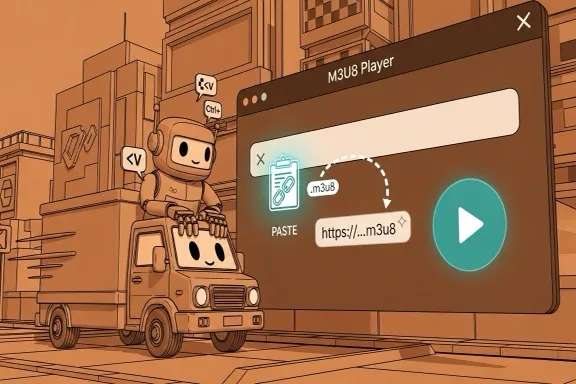
Start on this page and scroll to the converter. The tool runs in your browser, so you do not need to install desktop software or create an account before using it.
Step 2 - Add your MOV file
Click the upload area or drag and drop a local .mov file. This page is designed for Apple QuickTime MOV video files and checks the file type before conversion starts.
Step 3 - Choose the bitrate
Select 128k if the file is mostly speech and size matters most, 192k for a balanced everyday export, or 320k when you want the highest MP3 quality for music, demos, or long-term reuse.
Step 4 - Start extraction
Click the convert button. FFmpeg.wasm reads the MOV container, removes the video stream, and encodes the audio track as MP3 directly on your machine.
Step 5 - Download the MP3
When processing finishes, the MP3 download starts automatically and the page also keeps a download button visible in case you want to save the result again manually.
Step 6 - Use the file where audio fits better
Play the MP3, upload it to your destination, or pass it into a transcript, podcast, archive, or course workflow. You now have a smaller audio-only file instead of a full video container.
Built for Repeat Audio Workflows
This page focuses on dependable browser-side extraction instead of a bloated all-in-one editor.
Typical Use Cases
Interviews, podcasts, lessons
Common audio extraction scenarios
Bitrate Options
128k / 192k / 320k
Fast control over output size and quality
Processing Model
Local in browser
No remote upload queue required
What Users Need from MOV to MP3
Real extraction scenarios where audio matters more than keeping the original video container.
Nina Brooks
Podcast Producer
Guests often send me QuickTime files from their phones. I only need the interview audio, and exporting MP3 here is much faster than opening a full editor just to strip the video.
Daniel Wu
Course Creator
I record class demos as MOV, then convert the voice track to MP3 for our LMS. The smaller files upload faster and are easier for students to review on mobile.
Sofia Almeida
Content Marketer
Sometimes I only want the spoken script from a product video. MOV to MP3 gives me an audio file I can send to transcription and repurposing tools without dragging the video along.
Takeshi Mori
Journalist
For field interviews, I archive the original video but work from MP3 copies. That keeps my notes, uploads, and editing sessions lighter while preserving the raw MOV file separately.
Lena Hoffman
Research Assistant
We capture many camera-based interviews as MOV. The browser-local conversion is useful because some recordings contain sensitive participant information and should not be uploaded to third-party servers.
Arif Prasetyo
Music Tutor
Students send rehearsal videos, but I only need the audio when reviewing timing and pitch. Converting MOV to MP3 cuts the file size and makes repeat listening much easier.
MOV to MP3 FAQ
What is the difference between MOV and MP3?
MOV is a video container that can hold both picture and sound. MP3 is an audio-only format. Converting MOV to MP3 removes the video track and keeps only the audio you want to listen to, upload, or archive.
Why would someone convert MOV to MP3?
Common reasons include extracting voice-over from a video, saving interview audio, reusing lecture soundtracks, pulling music from a clip, meeting upload limits, and getting a format that plays on more devices and software.
Will the file size become smaller after conversion?
Yes, in most cases it becomes much smaller because the video stream is removed. A long MOV file can shrink substantially once you export only the audio as MP3, especially at 128k or 192k bitrate.
Which bitrate should I choose for MOV to MP3?
128k is fine for speech and the smallest file size. 192k is the best general-purpose setting for interviews, podcasts, and lessons. 320k is better when the source contains music or when you want the highest MP3 quality available.
Are my MOV files uploaded during conversion?
No. This page is designed for local browser processing. The conversion runs on your device with FFmpeg.wasm, so your files are not sent to a remote conversion queue.
What if my MOV file has no usable audio track?
If the original MOV file has no audio stream, or the audio stream is damaged, conversion can fail or produce an empty result. In that case, verify the source file plays sound before trying again.
Convert MOV to MP3 or Continue with Related Audio Tools
Start the converter above, or jump to sibling pages when your workflow also needs MP4 to MP3, M4A to MP3, or WAV to MP3 conversions.