
Audio Converter

Convert audio files online for free in your browser with no upload required. This tool is built for clear audio conversion workflows: choose your source file, pick a target format, and export a clean result in seconds. The first release focuses on practical daily formats and stable results instead of stuffing in every advanced knob. If you need fast conversion between MP3, WAV, and M4A with local privacy and predictable output, this page gives you a focused workflow that is easy to trust.
Drop an audio file here or click to select
Supports MP3, WAV, M4A, AAC, OGG, and FLAC
Choose output format first. MP3 supports 128/192/320 kbps
Max file size: 500MB
Output format
MP3 bitrate
Clear format choices
Choose exactly which output format you want instead of using one preset for every case.
Local and private
Your source file stays on your device because processing is done in-browser with FFmpeg.wasm.
Stable first release
This version focuses on reliable conversion paths for daily audio tasks before adding advanced tuning.
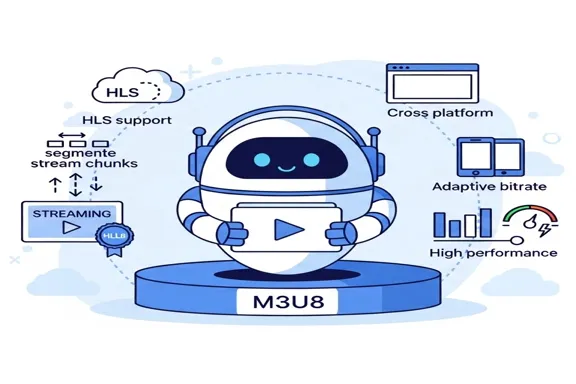
What is an audio converter
An audio converter changes one audio format into another format so the file works better in your target app, device, or platform. Different formats optimize for different goals. WAV keeps uncompressed quality for editing. MP3 reduces file size for sharing. M4A balances quality and size. Instead of treating conversion as a generic process, this page keeps choices explicit: you can select the output format directly and, when exporting MP3, choose a bitrate that fits your workflow. That clarity matters because many users convert audio with a concrete goal, such as publishing a podcast preview, uploading narration to an LMS, or preparing voice files for cross-platform playback.
- Format compatibilityA file may play perfectly in one environment but fail in another. Converting to a better-supported format avoids playback surprises and support tickets.
- Workflow-specific outputEditors may want WAV for mastering, while social uploads usually need smaller MP3 files. A converter bridges those workflow needs quickly.
- No-install pathBrowser conversion lets you process files without desktop setup, plugin conflicts, or account signup steps.
Core features
Built for clean, understandable, and stable audio conversion
Wide input support
Import MP3, WAV, M4A, AAC, OGG, and FLAC files for common creator and editing pipelines.
Explicit output selection
Choose output as MP3, WAV, or M4A. The tool does not hide format decisions behind vague presets.
MP3 bitrate options
When output is MP3, select 128, 192, or 320 kbps to balance quality and size for your use case.
Browser-local processing
Conversion runs in your browser session with FFmpeg.wasm. Files stay on your device and are not uploaded.
Clear progress and error states
Loading, converting, completion, and validation errors use direct, practical messaging for faster troubleshooting.
Predictable naming
Downloaded files keep the original base name and append the selected output extension for easy organization.
Why use this audio converter
Many conversion pages try to do everything and end up making basic tasks slower. This page is intentionally opinionated: stable format paths, clear options, and local-first privacy. That focus helps users finish the job faster.
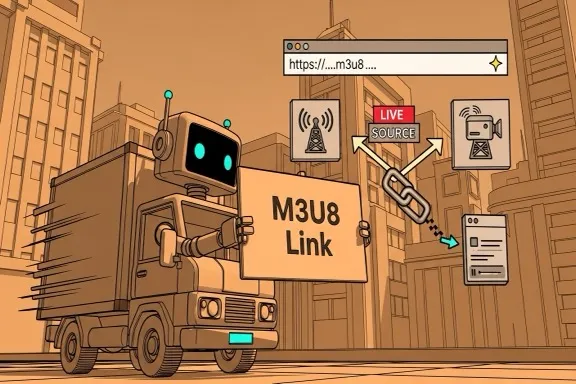
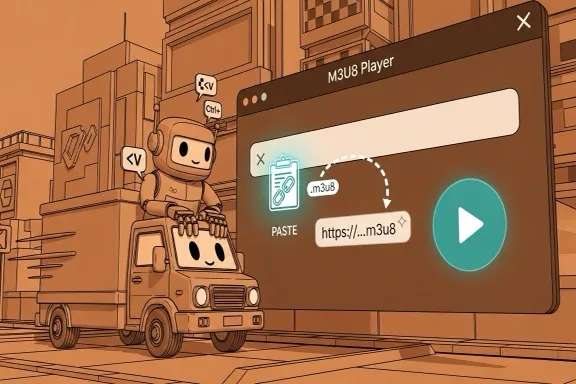

How to convert audio online
A stable six-step process for clean audio conversion
Step 1 - Open the converter
Go to the converter area on this page. No registration, plugin, or desktop install is required. The workflow starts immediately in the browser.
Step 2 - Add your source file
Drag and drop your file or click to browse. Supported source formats include MP3, WAV, M4A, AAC, OGG, and FLAC. If your file fails validation, check extension and file size first.
Step 3 - Choose output format
Select MP3, WAV, or M4A based on your target workflow. Use WAV for editing and archive quality, MP3 for broad compatibility, and M4A when you want efficient quality-to-size balance.
Step 4 - Set MP3 bitrate when needed
If output is MP3, choose bitrate: 128 kbps for lightweight voice use, 192 kbps for balanced quality, or 320 kbps for higher fidelity sharing.
Step 5 - Start conversion
Click convert and wait for processing to complete. Progress is shown in the interface. Larger files and slower CPUs may require more time, but no remote queue is involved.
Step 6 - Download and verify
Download starts with a predictable filename using your original base name and new extension. Open the output in your target app to confirm expected quality and compatibility.
This first release is designed around common creator and publishing workflows, not edge-case archival lab scenarios. For input, you can import MP3, WAV, M4A, AAC, OGG, and FLAC. For output, you can choose MP3, WAV, or M4A. That scope intentionally covers the majority of tasks encountered by educators, podcasters, short-video editors, marketing teams, and support operations.
If your goal is broad playback compatibility, MP3 is still the safest choice. Almost every browser, phone, video editor, and social platform can parse MP3 immediately, making it ideal for distribution files and quick approvals. If your goal is editing quality and maximum interoperability with DAWs, WAV is often the better output path because it avoids lossy re-encoding artifacts in downstream editing. If you need a compact format with good quality efficiency, M4A output is a practical middle ground for many modern mobile and web workflows.
Bitrate choice matters most when exporting to MP3. 128 kbps is usually enough for spoken-word drafts, subtitles references, and internal check files where speed and size are more important than fidelity. 192 kbps is a balanced default for mixed use. 320 kbps is a safer option when preserving detail for music demos or quality-sensitive review rounds. The page keeps this decision visible so users can choose intentionally instead of relying on hidden defaults.
The converter runs in your browser using FFmpeg.wasm. That means conversion happens on your device rather than on an upload server. This model is especially useful when handling internal recordings, interview source files, client voiceovers, or unreleased content. There is no mandatory account and no remote job queue to wait for.
For large files, the most common issues are memory pressure and local CPU limits. If conversion feels slow or fails, close heavy browser tabs, retry with a smaller source segment, or use a shorter input for quick validation before full export. If the file type is rejected, verify extension and container details because some recordings use uncommon metadata while still appearing as familiar formats.
This page prioritizes stable conversion for mainstream formats. If you need multi-track editing, noise reduction, spectral repair, or mastering-grade pipelines, use a full audio editor after this conversion step. The goal here is reliable format transformation and fast delivery, not replacing professional DAW workflows.
Related tools
Use these pages when your task is trimming or extracting specific content instead of full-file format conversion.
Built for everyday conversion workloads
Reliable browser-side processing for practical audio tasks
Formats supported
6 in / 3 out
Input-output matrix focused on real usage
Typical completion
< 30s
For standard short-form files
Processing model
Local
No upload queue required
What users say
Feedback from creators using this converter in daily production
Nina Patel
Course Producer
We receive voice submissions in mixed formats and needed one clean output path for our LMS. This converter made the handoff process much easier.
Leon Garcia
Podcast Assistant
I use it to quickly normalize incoming files before editing. The explicit output choice and MP3 bitrate control are exactly what I needed.
Maya Chen
Marketing Editor
For short campaigns, browser conversion is faster than opening a full editor. Local processing is a big plus for early unreleased assets.
Audio converter FAQ
Answers to common compatibility, quality, and workflow questions
Does this audio converter upload my files?
No. Conversion is processed locally in your browser. Your file is handled on your device and is not sent to our server for remote conversion.
Which input formats are supported?
You can upload MP3, WAV, M4A, AAC, OGG, and FLAC in the first version. If a file is rejected, verify that the extension and container are valid and not corrupted.
Which output formats can I export?
Current output options are MP3, WAV, and M4A. This is intentional so the tool stays stable and clear for common publishing workflows.
When should I choose 128, 192, or 320 kbps MP3?
Use 128 kbps for lightweight voice drafts, 192 kbps for balanced general use, and 320 kbps for higher quality music or archive-oriented distribution.
How is the output filename generated?
The downloaded file keeps your original base name and swaps to the selected output extension, so organization remains predictable in batch workflows.
What if conversion fails?
Try a smaller file first, close heavy tabs, and retry. Failures are usually related to unsupported codec details, damaged source files, or local browser memory constraints.
Convert audio quickly with local privacy
Use the focused converter above, then jump to trimming and extraction tools when your workflow needs editing or segment cuts.