
Drop WAV file here or click to select
Supports .wav audio files
Output format: MP3 (choose bitrate below)
Max file size: 500MB
Output bitrate
Multiple Formats
Supports MP4/WEBM/MKV/AVI and more
No Installation
Powered by FFmpeg.wasm, runs in browser
Full Quality Control
Customize CRF, resolution, codec parameters
Supported formats and output options
WAV input with MP3 output at your chosen bitrate — clear, focused, and practical.
WAV Input Only
Upload standard .wav audio files from recordings, DAW exports, podcast masters, or any other uncompressed audio source.
MP3 Output with Bitrate Choice
Select 128k for smaller files, 192k for a balanced result, or 320k for the highest MP3 quality available before you need lossless formats.
No Upload Required
Conversion runs entirely in your browser with FFmpeg.wasm. Files stay on your device from start to finish — no cloud queue, no waiting, no risk.
Original Filename Preserved
The output file keeps the original name with a .mp3 extension added, so your download folder stays organized without manual renaming.
Fast Local Conversion
Modern browsers execute FFmpeg.wasm efficiently. Most common WAV files convert in seconds without installing any additional software.
Up to 500 MB Files
The converter handles large uncompressed WAV files up to 500 MB, covering most studio, podcast, and lecture recordings.
Why convert WAV to MP3
WAV files are large because they store uncompressed audio. MP3 uses perceptual compression to keep quality reasonable while cutting file size dramatically — often by 90% or more. That matters when you need to share files, upload to platforms with size limits, or store a large archive on limited space.
- Drastically Smaller FilesA typical 50 MB WAV file can become a 5 MB MP3 at 192k bitrate. That reduction makes a real difference for email attachments, cloud storage, and streaming platforms.
- Universal CompatibilityMP3 is supported by virtually every device, app, and platform in existence. If you need audio that plays anywhere without codec questions, MP3 is the safest choice.
- Private Local ProcessingYour WAV source file never leaves your device. The entire conversion runs in your browser via FFmpeg.wasm, so sensitive recordings stay local throughout.
When MP3 is the right output format
MP3 excels at distribution, sharing, and storage — the three areas where large WAV files create practical friction.

How to convert WAV to MP3
Six clear steps from source WAV to finished MP3 download.
Step 1 — Open the converter
Use the converter at the top of this page. It runs locally in your browser, so there is no installer or account to deal with before you start.
Step 2 — Upload your WAV file
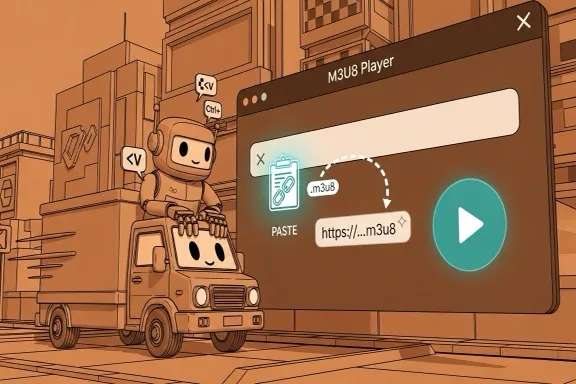
Drag and drop a local .wav file onto the drop area, or click to select one from your device. Only WAV files are accepted on this page to keep the workflow clear.
Step 3 — Choose a bitrate
Pick 128k for the smallest file, 192k for a good balance of quality and size, or 320k for maximum MP3 quality. Most people use 192k for everyday listening.
Step 4 — Start conversion
Click the convert button. FFmpeg.wasm processes the WAV locally in your browser. A progress bar shows the status so you can track it without guessing.
Step 5 — Download the MP3
When conversion completes, the MP3 file downloads automatically with the original filename and a .mp3 extension.
Step 6 — Use your MP3
Your converted MP3 is ready to share, upload, stream, or store. No cleanup steps needed — processing happens entirely on your device.
Built for practical audio conversion
Fast, private, browser-based WAV to MP3 conversion with bitrate control.
Monthly Tool Sessions
25K+
Across browser audio workflows
Typical Success Rate
>97%
For common WAV inputs
Average Conversion Time
<20s
On standard desktop hardware
What users say
Feedback from people who regularly convert WAV masters to MP3 for distribution.
Sarah Mitchell
Independent Musician
I record everything in WAV from my DAW but need MP3 for distribution platforms. This tool converts locally so I never have to send my unreleased tracks anywhere.
David Park
Podcast Host
My audio editor delivers WAV masters. Converting to MP3 192k here before uploading to the host saves me space and keeps my workflow fast without quality loss.
Amara Osei
Voice Actor
Clients often want MP3 auditions, but I record in WAV. This page gives me a quick local conversion at 192k that sounds clean and passes every client review.
Leon Richter
Audio Archivist
We digitize interviews to WAV first, then create MP3 listening copies for editors. Having a browser converter that keeps files local matters for sensitive oral history material.
Mei Tanaka
Music Teacher
Students hand in WAV files from their recordings but the school system only accepts MP3. This converter solves that on any browser, no installs required.
Carlos Vega
Video Producer
My timeline exports uncompressed WAV. For quick client previews I convert to MP3 320k so the audio email is small but still sounds professional.
WAV to MP3 FAQ
What is the difference between WAV and MP3?
WAV typically stores uncompressed PCM audio, which means every sample is kept and file sizes are large. MP3 uses perceptual compression to discard sounds the human ear typically does not notice, which produces much smaller files at the cost of some irreversible quality reduction. WAV is the standard for recording, editing, and archiving. MP3 is the standard for distribution, streaming, and storing listening copies.
How much smaller will the MP3 file be compared to the WAV?
The exact ratio depends on the bitrate you choose and the duration of the audio, but as a rough guide: a 50 MB WAV file becomes around 9 MB at 320k, 6 MB at 192k, or 4 MB at 128k. That is a reduction of 80 to 92 percent. For long recordings such as lectures or full-length albums, the difference in storage and upload time is significant.
Does converting WAV to MP3 reduce audio quality?
Yes. MP3 is a lossy format, which means some audio information is permanently removed during compression. At 320k the difference is hard to hear for most listeners on typical speakers or headphones. At 192k it is still widely considered acceptable for music and speech. At 128k it is suitable for voice content and background listening but may show audible artifacts in complex music. If you need to preserve exact quality, keep the WAV original.
Which MP3 bitrate should I choose?
128k is good for voice recordings, podcasts, and audio where file size matters more than subtle detail. 192k is a practical choice for music distribution, client demos, and streaming — it balances quality and size well. 320k gives the highest quality available in the MP3 format and is suitable for masters, archival distribution copies, and listeners with high-quality playback equipment. When in doubt, 192k is a safe default for most workflows.
Is this WAV to MP3 converter private?
Yes. The conversion runs entirely in your browser using FFmpeg.wasm, so your WAV file is never uploaded to a server. That makes this converter suitable for unreleased music, interview recordings, client material, and any other audio you prefer to keep private. No account is required, and no data is retained after the page is closed.
Can I convert back from MP3 to WAV after this?
Yes, but the result will not restore the quality removed during the WAV to MP3 compression step. Converting MP3 back to WAV gives you an uncompressed container around a compressed audio source. The WAV file will be larger, but it will not sound better than the MP3 you started with. Use the MP3 to WAV page on this site if you need the format change for workflow or compatibility reasons.
What WAV files does this converter support?
The converter accepts standard PCM WAV files up to 500 MB. This covers the vast majority of WAV files produced by DAWs, audio recorders, mobile apps, and screen recording tools. Files in unusual WAV subformats such as compressed WAV or floating-point WAV may not convert correctly, but standard 16-bit or 24-bit PCM WAV files work reliably.
Convert WAV to MP3 in your browser
Use the converter above to create a compact MP3 locally with bitrate control and no upload. If you need the reverse workflow, see the related tools below.