
Videodatei hier ablegen oder zum Auswahlen klicken
Unterstutzt MP4-, MOV-, MKV- und WebM-Videodateien
Extrahieren Sie Audio lokal in Ihrem Browser. Kein Upload erforderlich.
Maximale Dateigrosse: 500MB
Ausgabeformat
MP3-Bitrate
Viele Formate
Mit einem Klick nach MP4/WEBM/MKV/AVI konvertieren. Hohe Kompatibilität mit Playern und Schnittsoftware.
Lokal im Browser
Dank FFmpeg.wasm ohne Upload oder Installation – datenschutzfreundlich.
Volle Qualitätskontrolle
CRF, Auflösung, Codec und Bitrate anpassbar – optimales Verhältnis aus Qualität und Größe.
Was dieses Tool leistet
Wenn Sie nur die Tonspur benötigen, nicht aber das Bild, extrahiert dieses Tool den Audiokanal direkt aus dem Video. Geeignet für Interviews, Schulungen und Archivierung.
- Tonspur direkt übernehmenSie müssen keine schwere Schnittsoftware öffnen, um nur den Ton zu sichern.
- Passende AusgabeformateMP3 für Verteilung, WAV für Schnitt, M4A für gute Balance zwischen Größe und Qualität.
- Lokale VerarbeitungDie Datei bleibt im Browser und muss nicht an einen externen Server gesendet werden.
Kernfunktionen
Ein direkter und stabiler Video-zu-Audio-Workflow
Unterstützt gängige Videoformate
MP4, MOV, MKV und WebM werden direkt verarbeitet.
Drei Audio-Ausgaben
Export als MP3, WAV oder M4A je nach Einsatzzweck.
Klare Statusanzeige
Laden, Konvertieren, Abschluss und Fehler werden eindeutig angezeigt.
Why use this extractor
Most users do not need a full nonlinear editing session just to keep the sound track. They need a reliable extraction pass that is quick, private, and easy to repeat. This page is optimized for that exact job.

How to extract audio from video online
A straightforward six-step workflow
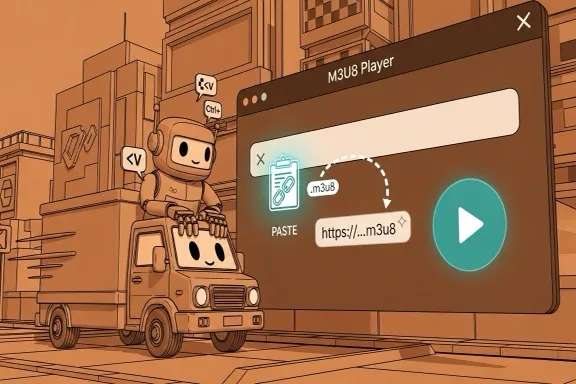
Step 1 - Open the extractor
Go to the extraction area on this page. No account, plugin, or desktop installation is required before you start.
Step 2 - Upload your video
Drag and drop or select MP4, MOV, MKV, or WebM. If validation fails, first check extension and source size.
Step 3 - Choose output format
Pick MP3, WAV, or M4A based on where the file will be used next. Keep the decision explicit for cleaner downstream workflows.
Step 4 - Set MP3 bitrate when needed
If output is MP3, choose 128 for lightweight drafts, 192 for balanced usage, or 320 for higher fidelity review and sharing.
Step 5 - Start extraction
Run extraction and monitor progress. Large files may take longer depending on your local machine, but no remote queue is involved.
Step 6 - Download and verify
Download the output with the original base filename and new extension. Open it in your target tool to confirm quality and compatibility.
Made for repeat extraction tasks
A stable conversion path for practical team workflows
Input formats
4
MP4, MOV, MKV, WebM
Output formats
3
MP3, WAV, M4A
Privacy model
Local
No server upload required
What users say
Feedback from teams that frequently split audio from source video
Megan Ortiz
Podcast Producer
We get interview recordings as video all the time. This tool saves us from opening a full editor when we only need the audio track for production prep.
Kenji Watanabe
Learning Content Manager
Our training team extracts narration from webinars for transcript review. The local processing model is a big plus for internal material.
Priya Shah
Marketing Editor
For campaign workflows, quick MP3 extraction is enough most days. The bitrate option helps us keep file size under control for fast approvals.
Häufige Fragen
Wichtige Hinweise zu Formaten und Verarbeitung
Wird das Video hochgeladen?
Nein. Die Verarbeitung läuft lokal im Browser, die Quelldatei bleibt auf Ihrem Gerät.
Welche Eingabeformate sind möglich?
MP4, MOV, MKV und WebM werden unterstützt.
Welche Audioformate kann ich exportieren?
MP3, WAV und M4A stehen als Ausgabe zur Verfügung.
Was tun bei einem Fehler?
Prüfen Sie Format und Dateizustand und schließen Sie speicherintensive Browser-Tabs, bevor Sie es erneut versuchen.
Jetzt Audio extrahieren
Nach der Extraktion können Sie weitere Tools für Konvertierung oder Trimmen verwenden.