

Suelta un archivo de video aqui o haz clic para seleccionarlo
Compatible con archivos de video MP4, MOV, MKV y WebM
Extrae audio localmente en tu navegador. No se requiere subida.
Tamano maximo de archivo: 500MB
Formato de salida
Bitrate MP3
Múltiples Formatos
Soporta MP4/WEBM/MKV/AVI y más
Sin Instalación
Potenciado por FFmpeg.wasm, funciona en el navegador
Control Total de Calidad
Personaliza CRF, resolución y parámetros de códec
Qué hace esta herramienta
Si solo necesitas el sonido y no la imagen, esta herramienta separa la pista de audio del video. Resulta útil para entrevistas, webinars, formación y material de archivo.
- Extrae la pista directamenteNo hace falta abrir un editor pesado solo para guardar el audio del video.
- Formatos de salida prácticosMP3 para compartir, WAV para edición, M4A para equilibrar tamaño y calidad.
- Procesamiento localEl archivo se procesa en tu navegador y no necesita subirse a servidores externos.
Funciones principales
Un flujo simple y estable para pasar de video a audio
Compatible con formatos comunes
Acepta MP4, MOV, MKV y WebM sin pasos intermedios.
Tres formatos de salida
Puedes exportar MP3, WAV o M4A según el uso final.
Estados claros
La interfaz muestra carga, conversión, éxito y fallo de forma explícita.
Why use this extractor
Most users do not need a full nonlinear editing session just to keep the sound track. They need a reliable extraction pass that is quick, private, and easy to repeat. This page is optimized for that exact job.

How to extract audio from video online
A straightforward six-step workflow
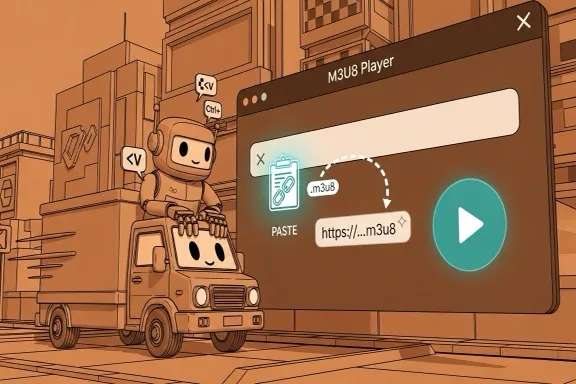
Step 1 - Open the extractor
Go to the extraction area on this page. No account, plugin, or desktop installation is required before you start.
Step 2 - Upload your video
Drag and drop or select MP4, MOV, MKV, or WebM. If validation fails, first check extension and source size.
Step 3 - Choose output format
Pick MP3, WAV, or M4A based on where the file will be used next. Keep the decision explicit for cleaner downstream workflows.
Step 4 - Set MP3 bitrate when needed
If output is MP3, choose 128 for lightweight drafts, 192 for balanced usage, or 320 for higher fidelity review and sharing.
Step 5 - Start extraction
Run extraction and monitor progress. Large files may take longer depending on your local machine, but no remote queue is involved.
Step 6 - Download and verify
Download the output with the original base filename and new extension. Open it in your target tool to confirm quality and compatibility.
Made for repeat extraction tasks
A stable conversion path for practical team workflows
Input formats
4
MP4, MOV, MKV, WebM
Output formats
3
MP3, WAV, M4A
Privacy model
Local
No server upload required
What users say
Feedback from teams that frequently split audio from source video
Megan Ortiz
Podcast Producer
We get interview recordings as video all the time. This tool saves us from opening a full editor when we only need the audio track for production prep.
Kenji Watanabe
Learning Content Manager
Our training team extracts narration from webinars for transcript review. The local processing model is a big plus for internal material.
Priya Shah
Marketing Editor
For campaign workflows, quick MP3 extraction is enough most days. The bitrate option helps us keep file size under control for fast approvals.
Preguntas frecuentes
Notas básicas sobre formatos y procesamiento
¿Se sube el video al servidor?
No. El proceso se ejecuta localmente en el navegador y el archivo no se envía a un servidor remoto.
¿Qué formatos de entrada admite?
Actualmente admite MP4, MOV, MKV y WebM.
¿Qué formatos de audio puedo exportar?
Puedes exportar MP3, WAV y M4A.
¿Qué hago si falla la extracción?
Comprueba que el archivo no esté dañado, que el formato sea compatible y cierra pestañas pesadas antes de reintentar.
Empieza a extraer audio
Después puedes seguir con otras herramientas del sitio para convertir o recortar el resultado.